

How to Fix Google Merchant Center Errors Step by Step
Last Updated
You're staring at Merchant Center, every important product has gone red, and the clock's already burning on Shopping traffic. The mistake most merchants make is trying to “fix the feed” before they know whether the problem sits in the account, the data, the product, or the policy layer. That wastes hours. The faster path is to treat google merchant center errors as a hierarchy, start with account health, then move into feed issues, then clean up product-level mismatches and prevention.
Why Google Merchant Center Errors Happen and How to Think About Them
The quickest way to get lost in Merchant Center is to treat every red flag as the same kind of problem. It isn't. Google's current diagnostics model breaks product status into approved, pending, and disapproved counts, and it can also filter by country and destination, which is exactly why an AU merchant should stop thinking in global terms and start isolating issues at the account and market level first Google Merchant API aggregate product statuses.
The four error families that matter
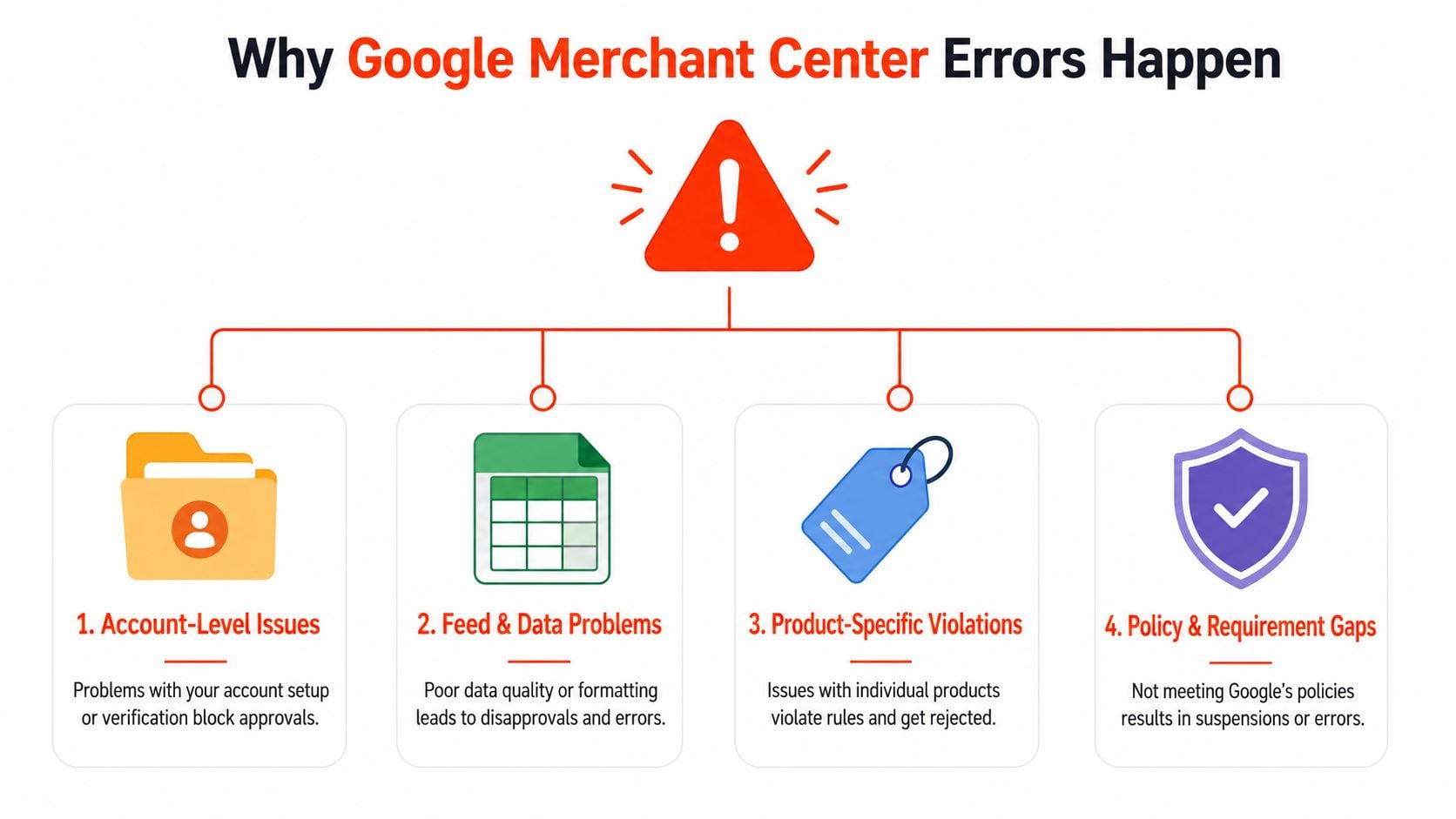
Most errors belong to one of four buckets. Account-level blockers sit above the feed and can suppress serving even when product rows look clean. Feed and data problems are the obvious ones, missing IDs, bad URLs, mismatched prices, malformed attributes. Product-specific violations affect only the rows that fail Google's checks. Policy and requirement gaps are the awkward category, because Google often gives you a symptom, not a neat diagnosis.
That distinction matters because a billing failure won't be solved by rewriting titles. Google's error messages now include structured account-level issues and API-driven diagnostics, which is a big shift from the old red-yellow-green style of account warnings Merchant API error messages. In practice, that means the same account can have a fully approved feed and still be blocked by a non-feed issue.
Practical rule: never touch product data until the account can actually serve.
A single typo can still ripple widely. If a shared field like price, availability, or shipping is wrong, you can trigger disapprovals across many items at once. Policy issues behave differently, though, because fixing the text or image sometimes isn't enough if the underlying landing page or offer itself still breaks Google's requirements.
The core mindset shift is simple. Don't ask, “How do I fix Merchant Center?” Ask, “Which layer is failing first?” That question saves you from random edits and points you straight to the right tab.
Account-Level Errors That Block Everything Else
Start here, before you open the Products view and start patching rows. Account-level problems are the ones that make merchants swear the feed is fine while nothing serves, and Google's newer Merchant API model makes those blockers much more explicit than the old dashboard alerts Merchant API error messages.
What to clear first
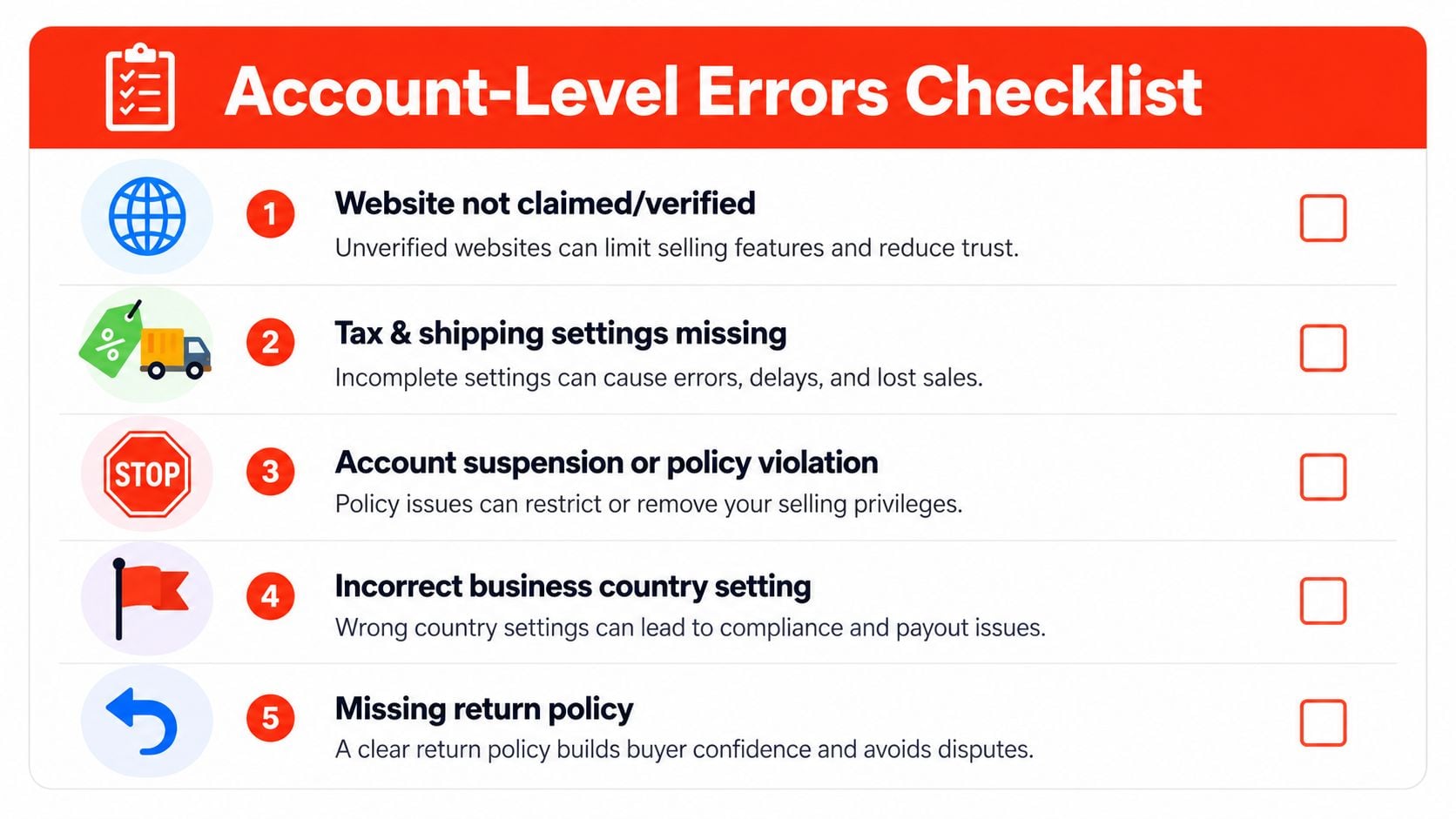
The practical shortlist is boring, but it's where failures live. Billing active, website claimed and verified, shipping and tax set correctly, business country aligned, and return policy in place are the kinds of basics that can stop everything downstream. Google's support docs now direct merchants to the Diagnostics page and the API diagnostics page to find disapprovals and failed calls, including account-level issues and quota-related failures such as quota/too_many_items Google Merchant support diagnostics guidance.
The newer API error names are useful because they tell you where to look. Errors such as BILLING_ACCOUNT_NOT_ACTIVE and BILLING_INSUFFICIENT_FUNDS_ACCOUNT aren't feed errors, they're account blockers. If the account can't bill, the catalog can sit in perfect shape and still fail to move.
A lot of merchants waste time chasing product warnings while the root cause sits in the account settings. That's especially true in AU setups where shipping, destination targeting, and country settings need to line up cleanly with the feed. If the account country is wrong or the shipping model doesn't match the market, you can end up fixing item rows that were never the core issue.
Order of operations that actually works
Fix the blocker, then refresh diagnostics, then re-check product status. If you reverse that order, you'll chase symptoms that Google can't clear yet. The account has to be able to process the feed before any item-level work matters.
The best sequence is blunt. First, verify the account is active and not restricted. Second, confirm the site claim and business settings. Third, make sure shipping, tax, and return data are complete enough for the target market. Only after that should you spend time on feed cleanup.
If your account is healthy, product fixes start to matter. If it isn't, every other edit is noise.
Reading the Diagnostics Page Like a Troubleshooting Pro
Most merchants open Diagnostics, see a cluttered list, and start changing the feed by instinct. That burns time. The page only helps when you read it the way a technician would, by narrowing the problem before touching a single field.
Filter before you fix
Start with the filters that separate a real issue from background noise. Google's diagnostics views can be filtered by country and destination, which is the cleanest way to isolate a regional problem instead of mixing it up with the full catalogue. If you sell into Australia and other markets, focus on the AU destination first, then inspect only the products that are affected.
The status counts matter as well. Approved shows what is already serving, pending shows what is still being reviewed or processed, and disapproved shows what is blocking serving. Do not treat pending items as failures. They are often just moving through Google's review flow.
Useful habit: filter to one country, one destination, one issue type, then work that slice until it is clean.
The other screen people skip is API diagnostics. Google exposes failed requests by method and time period, which is where feed automation problems show up first. That matters if your catalogue updates through Content API or another scheduled upload path, because a manual feed can look fine while the upload process is failing behind the scenes. The Google Merchant API aggregate product statuses page is the cleaner way to see how those statuses roll up when you need to separate item-level noise from account-level patterns.
The routine that stops thrash
Check the scope before you touch the data. If the issue is limited to one destination, do not assume the whole account is broken. If the failures cluster around one upload method, inspect the pipeline first, not the product copy.
Separating visibility from cause is a key skill. Diagnostics shows what Google rejected or delayed, but it does not always show why the source changed. That is why the fastest practitioners work from the narrowest possible slice, confirm whether the problem is account, feed, or policy related, then fix the smallest thing that could reasonably clear it.
If you need a practical reference for how feed structure should be set up before Diagnostics starts throwing errors, the workflow in this Google Shopping feed setup guide is a useful baseline. For the underlying data model, the partner explanation of structured data files for ecommerce is a better fit than treating every warning as a one-off Merchant Center problem.
Once that habit is in place, Diagnostics stops reading like a wall of warnings. It becomes a map.
Fixing Common Product Disapprovals in Your Feed
A clean account and a usable Diagnostics view make the feed work far easier to sort through, but the actual fixes usually sit upstream. The same disapprovals keep reappearing because the same source fields are mapped badly, especially in platforms that generate multiple pricing, availability, or identifier values. I usually start by checking whether the feed is pulling the right source of truth before I touch any product copy.
The disapprovals I see most often
A missing or invalid GTIN usually means the identifier was mapped wrong, or the source data never contained a valid code. A price mismatch means Google saw one price in the feed and a different one on the landing page. A broken URL usually points to the wrong landing page, or a redirect chain that makes crawling unreliable. Unsupported shipping or tax values usually come from forcing store terminology into Google's required settings.
Policy text takes more judgment. Google will reject language that crosses its rules, but the diagnostic message is often broad enough to slow you down. Feed hygiene and page hygiene meet here. If the item title or description includes language Google does not accept, removing it in the feed is usually faster than waiting on a generic support reply.
A lot of “feed errors” are really source-data errors that got copied into the feed. That is why structured data files for ecommerce matter so much, and why a good feed tool or export layer can save hours of manual edits. If you are reviewing catalogue structure, this Google Shopping feed setup guide is a practical baseline for avoiding repeat mapping mistakes.
Common GMC Product Disapprovals and Quick Fixes
| Disapproval | Likely Cause | Fastest Fix |
|---|---|---|
| Missing or invalid GTIN | Identifier is not mapped, or the code is missing or incorrect | Map the correct identifier field, or clean the source value |
| Price mismatch | Feed price and landing page price do not match | Update the source of truth, then resubmit |
| Broken URL | Wrong link field, redirect, or bad landing page | Replace the link with the live product URL |
| Shipping or tax issue | Required settings are missing or too vague | Complete the required Merchant Center settings |
| Policy-related disapproval | Offer text, image, or page content violates requirements | Remove the offending element, then recheck the item |
For bulk changes, feed edits are often slower than a proper template or Content API update. Manual fixes make sense for a handful of items. Once the same problem keeps surfacing across a catalogue, bulk correction is the cleaner move.
Solving Local Inventory and Regional Feed Issues for AU Retailers
Local inventory errors are the quiet ones. The main feed can look healthy while suburb-level or store-level visibility still drops because the local stock data is stale, incomplete, or mismatched. That matters a lot more in AU than most generic guides admit, because shoppers often expect accurate nearby availability and click-and-collect information.
Why local inventory breaks differently
Google's AU help content treats missing local inventory data as a distinct issue, with a multi-step bulk-fix workflow that includes downloading affected products, cross-referencing inventory, and reuploading corrected data Google AU local inventory guidance. That workflow is practical, but it also exposes the core problem. Local inventory doesn't fail like a simple title typo. It fails when store data, feed cadence, and regional availability drift apart.
A retailer can have the right online stock and still suppress local visibility if the in-store feed is incomplete. That's the frustration. The web feed and the local inventory feed aren't the same thing, and Google treats them differently for serving. If the local data doesn't line up, the product can lose visibility around the exact stores where demand is strongest.
For stores running click-and-collect or suburb-targeted campaigns, that's not just feed hygiene. It's revenue leakage. You're telling Google the product exists somewhere, but not convincingly enough for the local experience to hold together.
The bulk-fix workflow that saves time
Start by exporting the affected items and comparing them to store inventory records. Then correct the missing local attributes, recheck the item IDs, and upload the fixed set again. If you skip the cross-reference step, you usually just replace one mismatch with another.
A useful operational rule is to treat local inventory like a live promise, not a static field. If store stock changes quickly, the feed has to move quickly too. For retailers that manage Shopify and similar setups, tools like DPP Shopify can help make the inventory side less painful, especially when local availability needs to stay aligned with the storefront. The broader local-shopping setup advice in this Google Shopping AU guide is also worth keeping nearby when region targeting gets messy.
Local inventory problems rarely start in Merchant Center. They usually begin in the store system and surface in Merchant Center later.
Moving From Manual Fixes to Programmatic Error Monitoring
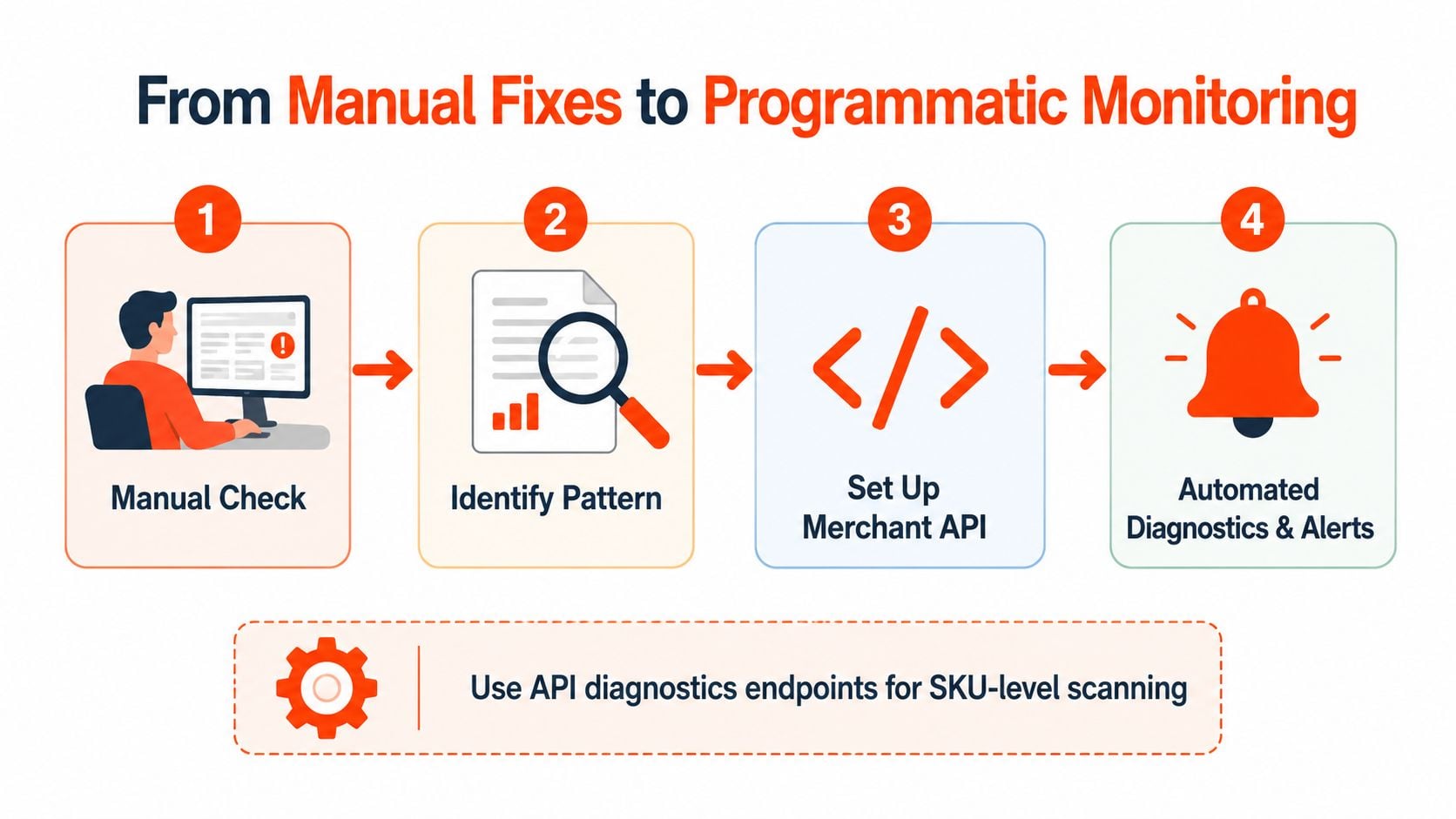
If you only have a small catalogue, manual checks can still get the job done. Once you're managing larger feeds or multiple Merchant Center accounts, logging in each morning to hunt for problems becomes a weak operating model. The newer Merchant API and diagnostics endpoints give you a cleaner way to watch status changes programmatically instead of reacting after the dashboard turns red.
Build around status, not panic
The useful shift is to monitor product-status aggregates and failed requests rather than waiting for someone to spot warnings in the UI. Google's API documentation exposes account issue listings, aggregate product status endpoints, and diagnostics that show failed requests by method and time period. That gives you enough structure to build a lightweight internal view of what is breaking, where it is breaking, and when it started.
Google Merchant API aggregate product statuses
Separating routine fixes from true exceptions is the key benefit. Some issues still need human judgement, especially policy-related disapprovals. Others are mechanical, such as a stale upload, a bad mapping, or a repeated source-field error. Once the pattern is visible, it becomes easier to decide what needs a person and what can be handled by a feed rule or a Content API update.
Where automation actually pays off
Automation is most useful when the failure mode repeats. If one field keeps breaking after the nightly upload, an alert tied to that error code is more useful than a full morning scan of the account. If a billing or account issue appears, automation should flag it immediately, because product fixes will not clear a blocker that sits above the feed.
That is the practical line. Do not automate every issue just because the API makes it possible. Automate the problems that recur, the ones that stop serving, and the ones that can be resolved with a structured action. Leave the edge cases for human review.
A reporting trail helps here too. A simple internal log of what changed, what failed, and what still needs escalation makes recurring Merchant Center issues easier to spot the next time they surface. If you want a ready-made format for that, the PPC reporting template is a useful reference for organising fixes and follow-up.
A Weekly Workflow to Prevent Errors From Coming Back
The way to stop recurring Merchant Center fires is to make review routine. If the account only gets attention after something breaks, the same problems will keep resurfacing in slightly different forms. A simple weekly rhythm beats heroic cleanup.
A practical cadence
Use Monday to review diagnostics and confirm there isn't a new account-level blocker. Use Tuesday to clear the top critical disapprovals. Use midweek to validate a sample of products, especially around pricing, availability, and URLs. Keep Thursday for policy and content updates, because those changes often create the next round of issues.
Friday should be about documenting what changed and checking whether the same issue reappeared. That record matters more than people think. When the same feed issue returns, the notes usually show whether the root cause was in the source system, the mapping layer, or the Merchant Center settings.
If you need a reporting structure for that rhythm, the PPC reporting template is a handy model for organising what was fixed, what's still open, and what needs escalation.
What to watch every week
- Account status: Confirm billing, verification, and shipping settings haven't slipped.
- Diagnostics drift: Check whether the same disapproval is affecting new items.
- Sample products: Spot-check titles, prices, availability, and URLs.
- Policy changes: Review any content or landing page changes before they scale.
- Change log: Record what was edited, by whom, and in which feed.
A monthly review should go wider. Compare landing page prices to feed prices, inspect shipping rules by region, and look for inventory drift in local feeds. That's where slow-burn errors hide.
If the account starts throwing account-level warnings again, pause and fix them before pushing more feed changes. That discipline keeps the weekly process from turning into another fire drill.
If your Merchant Center is stuck in repeat disapproval cycles, Click Click Bang Bang can help you untangle the account health, feed structure, and Shopping setup that keep causing the same errors. Visit Click Click Bang Bang to get PPC and Shopping support built around clean data, clearer reporting, and fixes that stick.
Read NeXt
Or Read Our Latest
Click. CLick. Subscribe.
Get our best PPC insights, industry updates, and power moves delivered straight to your inbox. No fluff, just high-caliber strategies that actually work.
Don’t Leave Just Yet
Try Us For 30-Days,
Risk Free!!
We guarantee that you’ll love our work within the first 30 days, if not you’ll get your money back.
What have you got to lose?