

Reporting Portal Login: Access Your Client Dashboard Fast
Last Updated
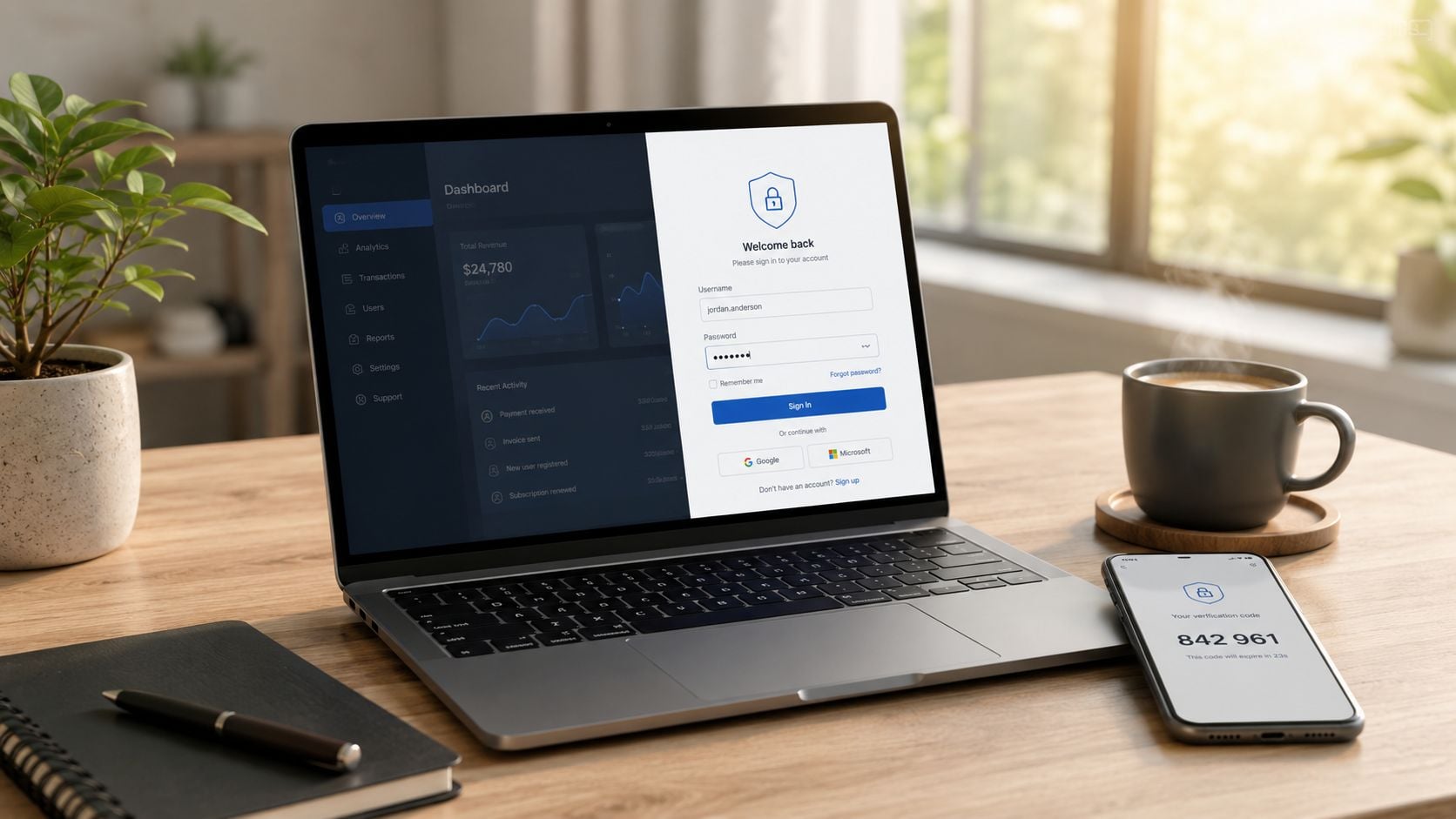
You usually notice the problem at the worst possible moment. The board deck is open, the monthly numbers are due, and the reporting portal login screen is sitting there like it's never heard of you. The first instinct is to blame the password, but the issue is often deeper, tangled up with identity, recovery access, and who owns the account now.
That's why the fastest fix is rarely just a reset. A portal lockout can come from a stale browser session, an MFA device that changed hands, a delegated login that was never fully activated, or a staff handover that nobody documented properly. Once you start treating login as a governance problem, the pattern gets easier to see, and the next support ticket gets easier to prevent.
When You Cannot Get Into the Reporting Portal
The first panic usually looks the same. Someone opens the dashboard before a review, types what they know is the right password, and the portal still refuses them. If the account belongs to a former staff member, if the authenticator moved to a new phone, or if the browser is carrying an old session, the login screen won't tell you which of those is true.
That's the trap. A visible error makes people chase the symptom instead of the cause, so they spend time retrying credentials that were never the issue. In Australian reporting environments, login reporting itself is built as an administrative feature, not a casual afterthought, with Microsoft's Power Platform admin centre offering downloadable legacy Portal logins reports that show authenticated sign-ins and anonymous site access across environments for a tenant, available for the last 30 days via Resources > Capacity > Download reports > New (Microsoft).
Treat the login screen as evidence, not verdict
Practical rule: if the portal rejects you, assume there's an access trail behind it, not just a bad password in front of it.
Oracle's PeopleSoft documentation makes the same point in a more traditional system. When StoreUserLogonInfo is enabled, each logon writes a row with the user ID, date, and time of logon, and the resulting statistics pagelet can show monthly logons, distinct user logons, and usage by days and hours (Oracle PeopleSoft). That matters because the login problem you see today often started earlier, when access was transferred badly, a device changed, or an account owner left without handing over recovery options.
The right response is simple, but it has to be deliberate. Check whether the access belongs to you, whether you're using the right identity, and whether the portal expects a direct password, SSO, or delegated account. If the answer is unclear, stop guessing and inspect the account record before you keep clicking.
How to Reach the Reporting Portal Login Page
On desktop, start from the portal URL you were given, not a search result or an old bookmark. If you arrived from a welcome email, open the link in a fresh browser window so you don't inherit a stale session from another account. If you're on mobile, use the same account identity you were invited with, because the portal usually expects the exact email or linked business identity that was provisioned.

The most common mistake I see is logging in with a personal address that was never invited. That can fail quietly, which makes people assume the password is wrong when the problem is that the account isn't the one the portal recognises. In public-sector reporting portals, the user ID can be a specific identifier rather than the organisation's main credential, and the user often has to choose the correct form or workspace before access works cleanly (Reporting Portal FAQs).
Use the identity the system expects, not the one that feels convenient. If your team uses delegated access, the login often lands you in a different workspace or role than the primary account holder sees. That's normal, but only if the invitation, the identity provider, and the internal ownership record all match.
The portal's own sign-in path is easiest when the session starts cleanly, from the correct URL, with the correct identity. If you need a visual walkthrough of the entry point, the embedded guide below can help before you try again in a live browser session.
Resetting a Forgotten Password the First Time
A password reset helps only when the account is already yours and the portal is asking for a password. If the issue is role access, a locked workspace, or the wrong identity provider, a reset just burns time. Use the Forgot password link when you know the account exists and you're confident the registered email is the one on file.
When the reset email arrives, open it once, set a new password you haven't used before, and finish the change in the same browser session if possible. Reusing an old password is a common way to make the reset look successful while the portal rejects the new value behind the scenes. If nothing arrives, check spam and junk folders, then confirm the registered email with the account manager before you click the reset link again.
A quick checklist usually beats panic:
- Confirm the address: Make sure the email on the reset request matches the account that was invited.
- Check message folders: Look in spam, junk, promotions, and any business filter quarantine.
- Use the link once: Complete the reset in one sitting so the token doesn't expire mid-process.
- Avoid repeat clicking: Spamming the reset button can create confusion and sometimes extra lockout noise.
- Escalate early if needed: If the reset never arrives, the issue may be ownership or provisioning, not the password itself.
For teams that want a broader view of authentication hygiene, add two-step verification is a useful reference point because it separates a password problem from a second-factor problem without pretending they're the same thing. That distinction matters when you're trying to diagnose why a login failed.
Setting Up MFA and SSO for the Reporting Portal
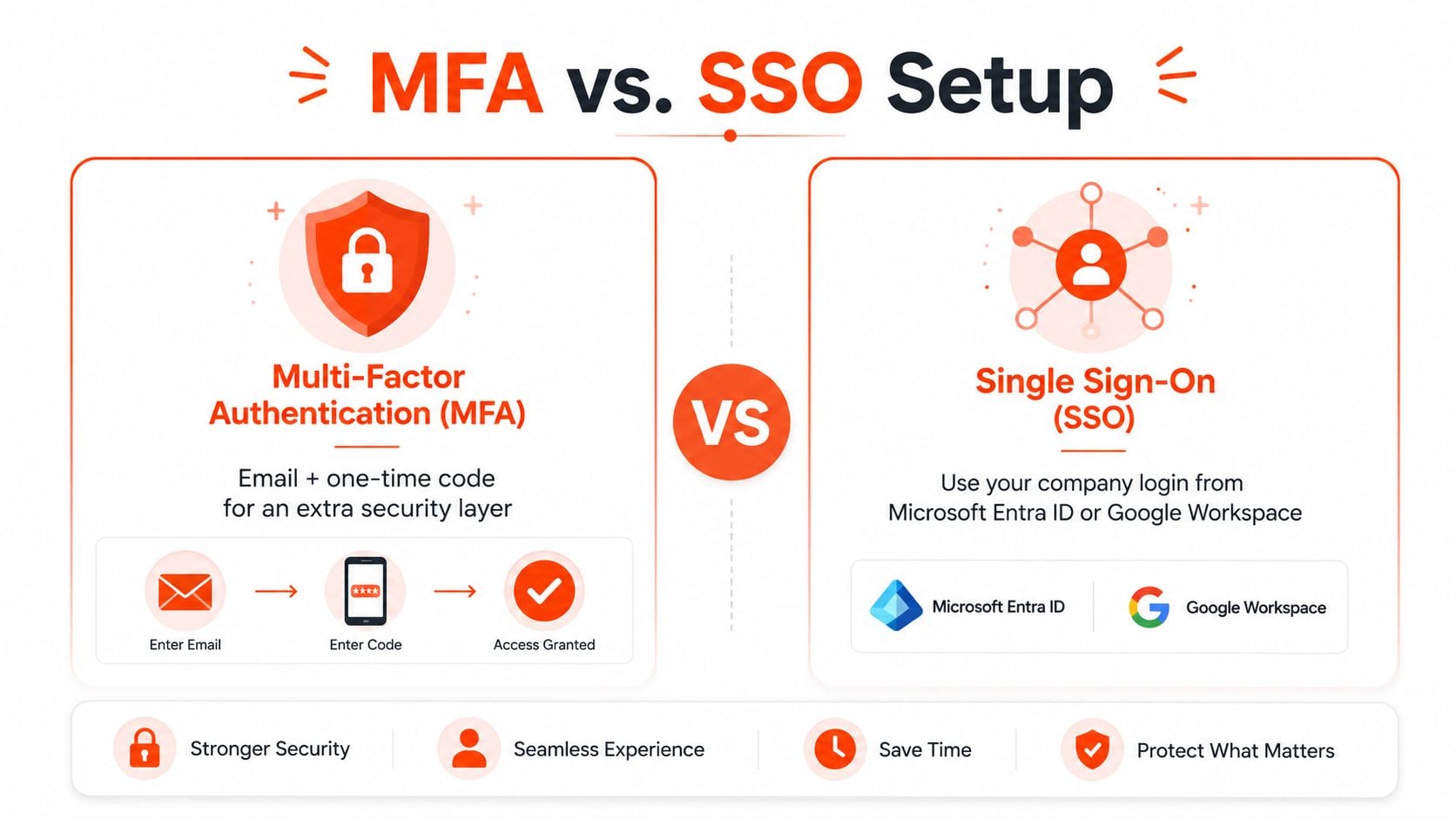
The cleanest login setup depends on how the portal is used. Smaller accounts often rely on MFA, where the user signs in with email and then confirms with a one-time code or authenticator prompt. Larger teams are usually better served by SSO, where the portal defers identity checking to a company directory such as Microsoft Entra ID or Google Workspace, then issues a session cookie only after the upstream identity provider approves the user.
That federated pattern is the safer benchmark for business reporting access. Microsoft's reporting-services flow shows the portal calling an authentication service, validating the user in an external security authority, and then issuing a session cookie/authentication ticket after success (Microsoft SQL Server reporting flow)). For a portal that handles marketing or compliance reporting, that means the login page should behave like a thin session broker, not a place where everyone stores local passwords forever.
Which setup fits which team
MFA works well when a single business owner or a very small team needs direct portal access and can manage a trusted device carefully. SSO works better when access needs to follow staff changes, offboarding, and departmental ownership, because the identity stays in the company directory instead of living inside the portal. If you're deciding which route to use, the control question is simple, who should own access, the person or the business?
The practical downside of MFA is device dependency. If someone registers a personal phone and then leaves the company, the recovery path can become messy. SSO reduces that risk, but it only works properly when the portal is configured to trust the right upstream identity provider and the admin team maintains recovery contacts and role assignments.
For a separate internal overview of how data and access governance fit together, the team's data privacy and compliance guidance is worth reviewing alongside login setup. Security only works when the access model and the reporting obligations line up.
Access Continuity When Staff Change or You Take Over an Account
Most reporting portal login tickets aren't really login tickets. They're handover tickets. The original marketer left, the agency account was returned in-house, the authenticator moved to a new phone, and nobody can prove who should own the portal now.
That's why the contrarian fix is to audit access ownership before you touch the password screen. If a business changes agencies, moves to a new workspace structure, or hands reporting from marketing to finance, the first thing to confirm is who can approve access changes and who receives recovery notices. Government and public-sector guidance around reporting portals repeatedly shows the same theme, access problems often come from registration, role approval, and managed access rather than a broken password alone (HHS portal account login guidance).
A handover that works in practice
An e-commerce founder once inherited portal access from a previous agency and got stuck at MFA because the old device was gone. The fix was boring, but effective, the account manager verified the active identity, then the portal owner updated the recovery contact and re-enrolled the second factor on a business device. The founder was back in the same afternoon, not because the password changed, but because the ownership chain was repaired.
If you're taking over an account, document three things immediately. Who is the admin owner, which email or directory manages recovery, and which staff member is authorised to request changes. Without that, the next lockout becomes a scavenger hunt.
A broken login is often a missing handover, not a bad credential.
If your reporting setup also depends on analytics or tracking continuity, the internal Google Analytics setup guide is a good reminder that access ownership needs to be documented across systems, not just in the portal itself. The same handover discipline prevents future lockouts.
Fixing the Five Most Common Login Errors
When support teams triage portal access, the same five messages come up again and again. The wording changes, but the root causes are usually predictable, and the quickest fix depends on whether the problem sits with the user, the browser, or the account configuration.
- Invalid credentials. Usually the wrong email, the wrong identity provider, or a password that was changed elsewhere. Try the registered address first, then confirm you're using the same login method as the original invitation.
- Account locked. Usually too many failed attempts or a temporary security hold. Stop retrying, wait for the lockout to clear, and confirm whether another admin can verify the account status.
- Session expired. Usually an old tab, a saved bookmark, or a stale browser session. Sign out completely, close the browser, and reopen the portal from the correct login page.
- MFA code rejected. Usually time drift, the wrong device, or a second-factor enrolment problem. Check that the authenticator is on the approved device and that the account is enrolled for the right factor.
- You do not have access to this workspace. Usually the role was never provisioned, the invitation wasn't completed, or the user is signing in with the wrong identity. Confirm the provisioned account and ask the admin owner to review permissions.
If the error looks like a credential problem but keeps returning after a clean reset, treat it as a provisioning issue instead. That's also the moment to check for breach-related password hygiene and review a step-by-step password leak response if the account has ever been reused elsewhere.
When and How to Contact the Click Click Bang Bang Support Team
Start with the simplest fix that matches the error you see. If the issue is a forgotten password or an expired session, a quick message is usually enough. If the request involves SSO, workspace permissions, or a handover between staff or agencies, send a structured note so the admin team can trace the account without going back and forth.
The most useful support request includes the account email, business name, error message screenshot, and the timestamp of the failed attempt. If the login failure happened after a phone change, a staff departure, or a role transfer, say that plainly. Those details usually cut the resolution time more than a long explanation ever will.
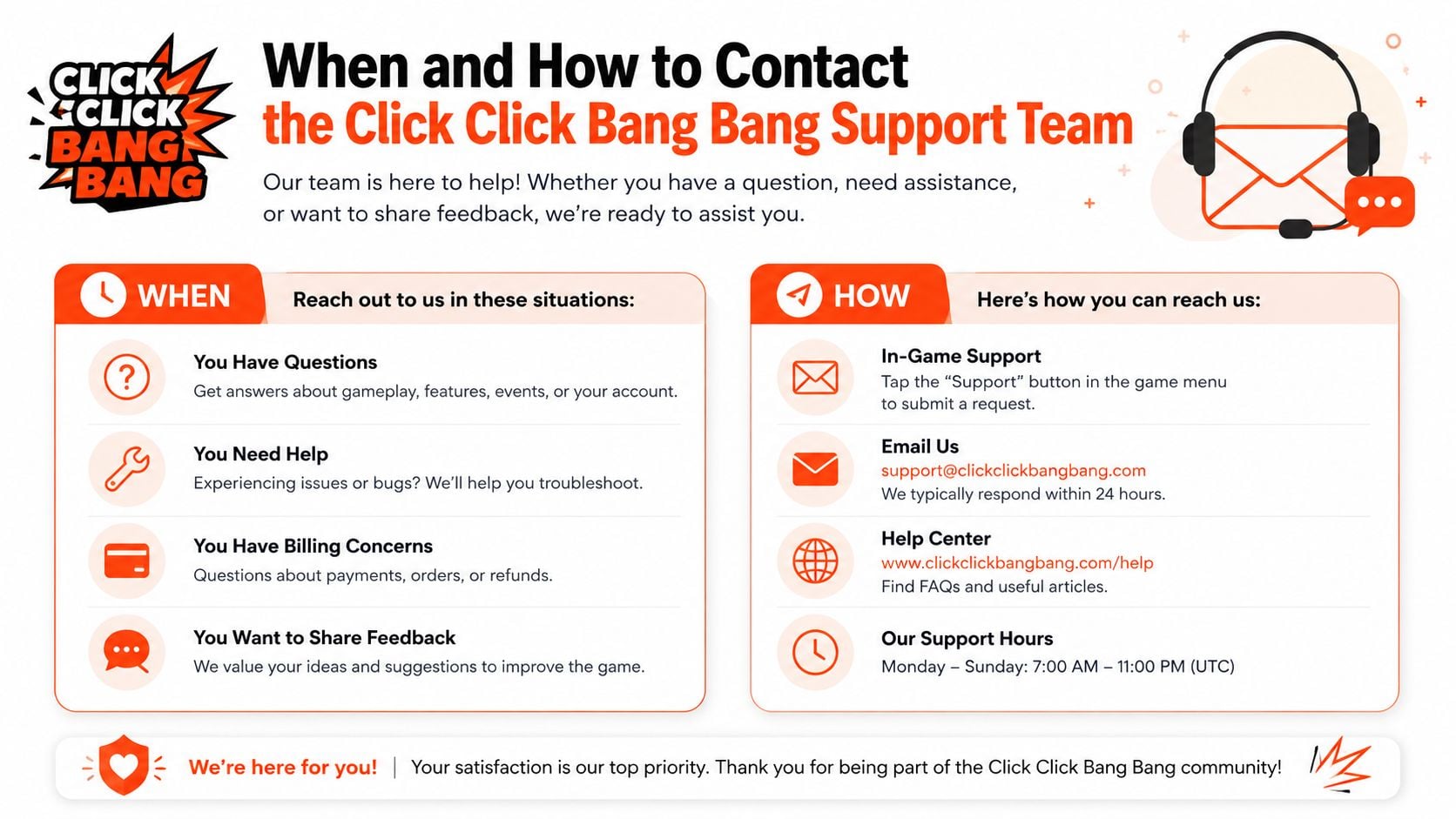
Use the contact route that matches the problem. A quick password issue belongs in a short message through the contact page. A configuration or access-transfer issue needs more context, because the next reply may depend on confirming identity ownership, recovery details, or account provisioning.
Best habits: document the admin owner, keep recovery contacts current, and test access monthly, not just on reporting day.
If you want the login side of your reporting setup cleaned up properly, Click Click Bang Bang can help you tighten access handovers, reporting workflows, and the client experience around portal use. If your team is tired of chasing lockouts at the worst possible time, visit the site and get the access process sorted before the next deadline lands.
Read NeXt
Or Read Our Latest
- Reporting Portal Login: Access Your Client Dashboard Fast
- How to Calculate Sample Size for A/B Tests and Campaigns
- How to Fix Google Merchant Center Errors Step by Step
- What Is Pagination and Why It Matters for AU Sites
- What Is Value Proposition? PPC & SEO Guide
- How to Choose a Google Ads Agency Australia
Click. CLick. Subscribe.
Get our best PPC insights, industry updates, and power moves delivered straight to your inbox. No fluff, just high-caliber strategies that actually work.
Don’t Leave Just Yet
Try Us For 30-Days,
Risk Free!!
We guarantee that you’ll love our work within the first 30 days, if not you’ll get your money back.
What have you got to lose?