

Google Merchant Center Setup: The Complete 2026 Guide
Last Updated
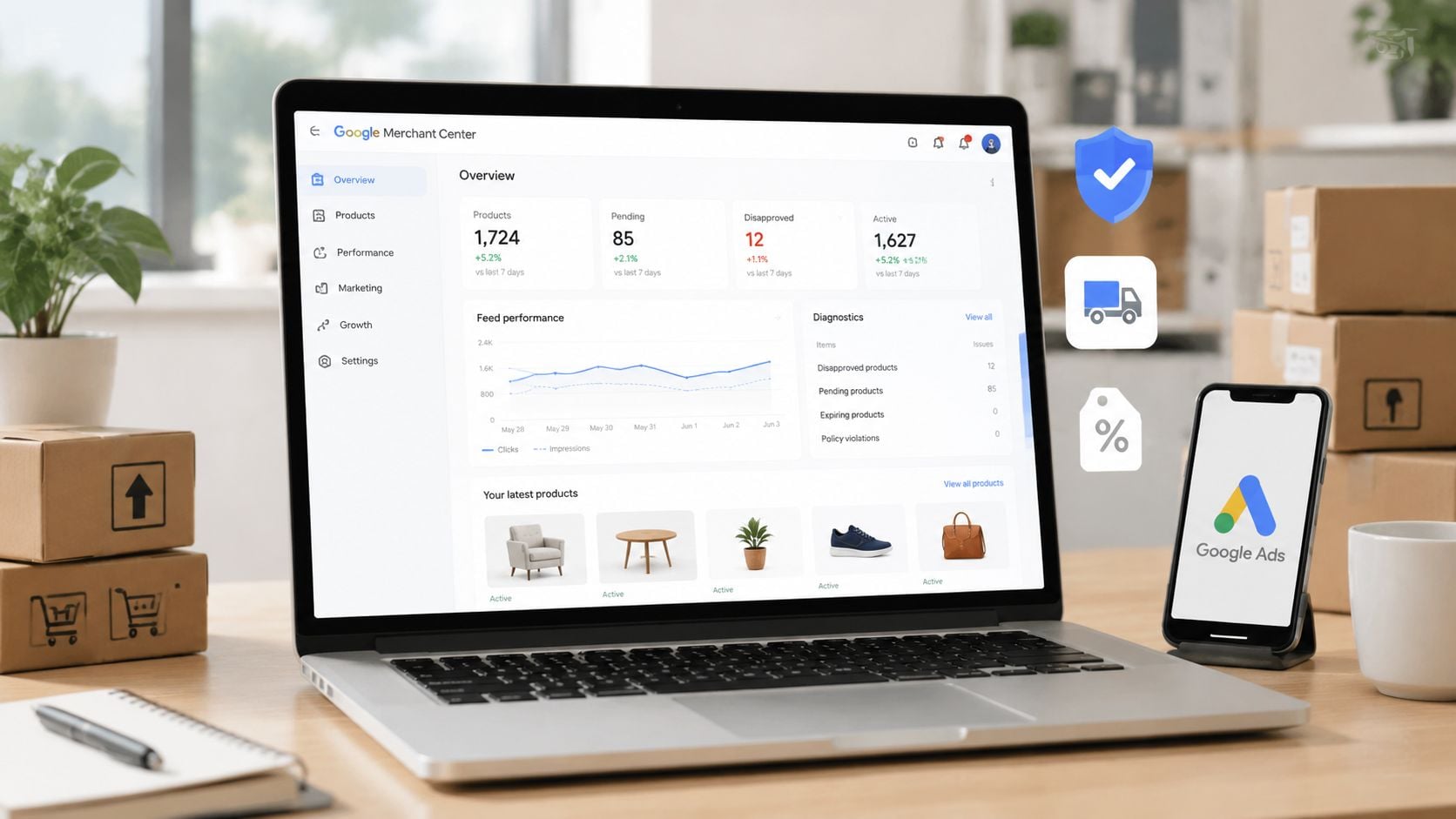
You've connected your Australian store to Google Merchant Center, uploaded the catalogue and linked Google Ads. Then the warnings arrive. A product price differs from the landing page, shipping information is missing, and items that look perfectly valid in your store remain unavailable for Shopping ads or free listings.
That pattern usually isn't caused by one broken setting. It comes from inconsistent data between your website, Merchant Center feed and Google Ads account. A reliable Google Merchant Center setup treats those systems as one commercial workflow, with GST-inclusive pricing, stock status, shipping rules, business details and conversion tracking kept aligned from the beginning.
Why Most Google Merchant Center Setups Fail for Australian Retailers
A retailer can follow a generic setup guide and still produce an account that Google can't confidently use. The feed may show one price, the product page another and the checkout a third after delivery or tax rules are applied. Google then has to choose which version to trust, and the result can be a warning, disapproval or weak campaign delivery.
Australian stores have a particularly important compliance detail to handle early. Shipping costs are required for Shopping ads and free listings in Australia, so shipping configuration isn't a finishing touch. It's one of the first eligibility tasks for local merchants using Merchant Center. Google lists Australia among the supported countries for free product listings, giving retailers an opportunity to appear through both paid Shopping activity and organic product visibility on Google. Google's Merchant Center documentation also describes the platform as the place to upload product feeds, manage product data and track item performance.
The consistency audit that should come first
Before changing account settings, compare the same product across four locations:
- Product page: Check the title, price, availability, image, variant and landing-page URL.
- Feed output: Confirm that the submitted attributes represent the live product, rather than an old catalogue export.
- Checkout: Check whether the customer sees the same price and applicable delivery options.
- Google Ads: Confirm that the campaign uses the intended Merchant Center account, conversion action and product inventory.
GST-inclusive pricing deserves special attention. If a customer sees a GST-inclusive price on the storefront, the feed should represent that same customer-facing price. A tax configuration that doesn't match the site can create price discrepancies even when the underlying product database is correct.
Practical rule: Don't start by asking why Google rejected a product. Start by asking which system contains the authoritative value, then make every other system match it.
Merchant Center setup also isn't a one-time upload. Google's product performance reporting requires a confirmed online store and at least one approved product before traffic data starts accumulating. That makes approval a gateway to useful measurement, not just a compliance milestone. Google also supports filtering performance by store type and traffic source, including online-store, physical-store, ads and organic results, as described in its product performance reporting guidance.
Creating Your Account and Verifying Your Website
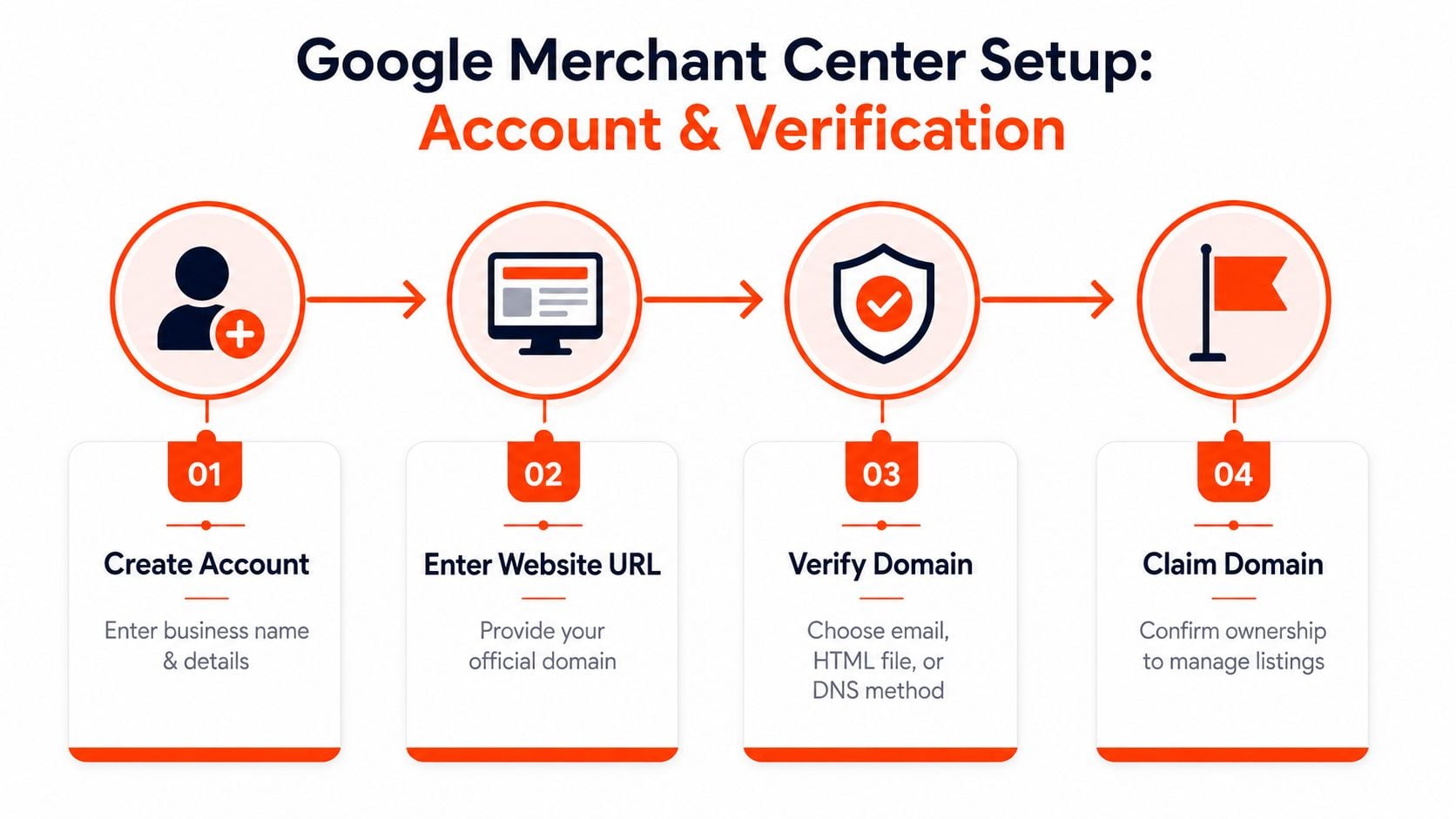
Start with the Google account that will remain accessible to the people responsible for the store, feed and advertising. Avoid creating Merchant Center under a personal login that a departing contractor controls. Add the business information carefully, because the account details should make sense alongside the trading name, contact page, footer and customer service information on the live website.
Choose the official website URL used by the store. A staging domain, redirected variation or inconsistent protocol can create ownership and claiming problems later. The account holder should have access to the website platform or an approved Google verification tool before attempting to claim the domain.
Verify first, then claim
Merchant Center needs to establish that your business controls the domain. The available route depends on the systems already installed:
- HTML file upload works when your developer can place a Google-provided file in the website's root location.
- HTML tag suits stores where someone can add a verification tag to the site template or theme.
- Google Analytics can work when the correct Analytics property and tracking implementation already serve the domain.
- Google Tag Manager is useful when the store team manages tags through an existing container with the required permissions.
The best method is usually the one your team can confirm and maintain, not the one that sounds most technical. If a Shopify, WooCommerce or custom-store developer controls template changes, an HTML tag may be straightforward. If Analytics or Tag Manager is already correctly implemented, using that existing setup may reduce additional work.
Once Google verifies ownership, claim the website in Merchant Center. Verification and claiming are related but distinct actions. Verification proves control, while claiming reserves the domain for the Merchant Center account that will manage its product listings.
Avoid account ownership conflicts
A frequent failure occurs when one Google account verifies the domain and another tries to claim or use it. Resolve ownership before uploading a feed. If another Merchant Center account already claims the domain, identify whether it belongs to an agency, previous employee, test account or another business entity, then coordinate the release or transfer through the appropriate account owner.
Google's Australian guidance covers the account creation and product-addition process in its Merchant Center setup instructions. Keep a written record of the account email, website owner, Analytics property, Tag Manager container and Google Ads administrator. That small governance step prevents a technical setup from becoming an access problem.
Choosing the Right Product Feed Format for Your Store
The feed format determines how quickly product changes reach Google and how much maintenance your team carries. A manual CSV is useful for validating a new account or testing a small range, but it becomes fragile when inventory, prices and variants change frequently.
XML scheduled fetches offer a practical middle ground. Your store or feed application generates a structured file, and Merchant Center retrieves it on a schedule. The setup takes more care than a spreadsheet, but the process is repeatable and gives technical teams a clear source to inspect when errors occur.
The Content API is suited to stores that need frequent programme-managed updates, especially where stock and pricing change often or the catalogue is connected to complex backend systems. It requires development resources and disciplined error handling, so it isn't automatically the right choice for every retailer.
| Criteria | CSV Upload | XML Scheduled Fetch | Content API |
|---|---|---|---|
| Best use | Initial testing and small catalogues | Managed, recurring catalogue updates | Highly integrated commerce systems |
| Update process | Manual or file-based | Google retrieves the generated file | Application sends product changes |
| Technical demand | Low | Moderate | High |
| Maintenance risk | Stale data and manual omissions | Feed generation or fetch failures | Authentication, application and API errors |
| Control | Easy to edit directly | Strong control through feed logic | Fine-grained programme control |
| Practical trade-off | Fast to launch, weak for ongoing accuracy | Good balance of automation and oversight | Powerful, but expensive to build and maintain |
Match the method to operational reality
For a small catalogue, begin with a CSV if the goal is to confirm titles, prices, links, images and availability. Don't treat that upload as the permanent operating model if staff must remember to replace it after every product change.
A mid-sized store generally benefits from an XML scheduled fetch generated by the platform or a dependable feed tool. The key question isn't only catalogue size. It's how often the source data changes and whether the team can monitor failed fetches.
Large or highly dynamic inventories may justify the Content API, particularly when a feed delay would expose unavailable products or incorrect prices. Before investing, document the data owner for every attribute and the process for handling rejected updates.
A sophisticated feed doesn't compensate for poor source data. Automation only distributes errors faster.
Whichever route you choose, product-feed optimisation should focus on reducing errors, improving attribute quality and keeping the submission aligned with the store. Netco Design's guide to boost ROI with product feeds provides useful context for that broader optimisation work. For a practical implementation reference, compare your platform's approach with this guide to setting up a Google Shopping feed.
Configuring Required Product Data and Shipping Settings
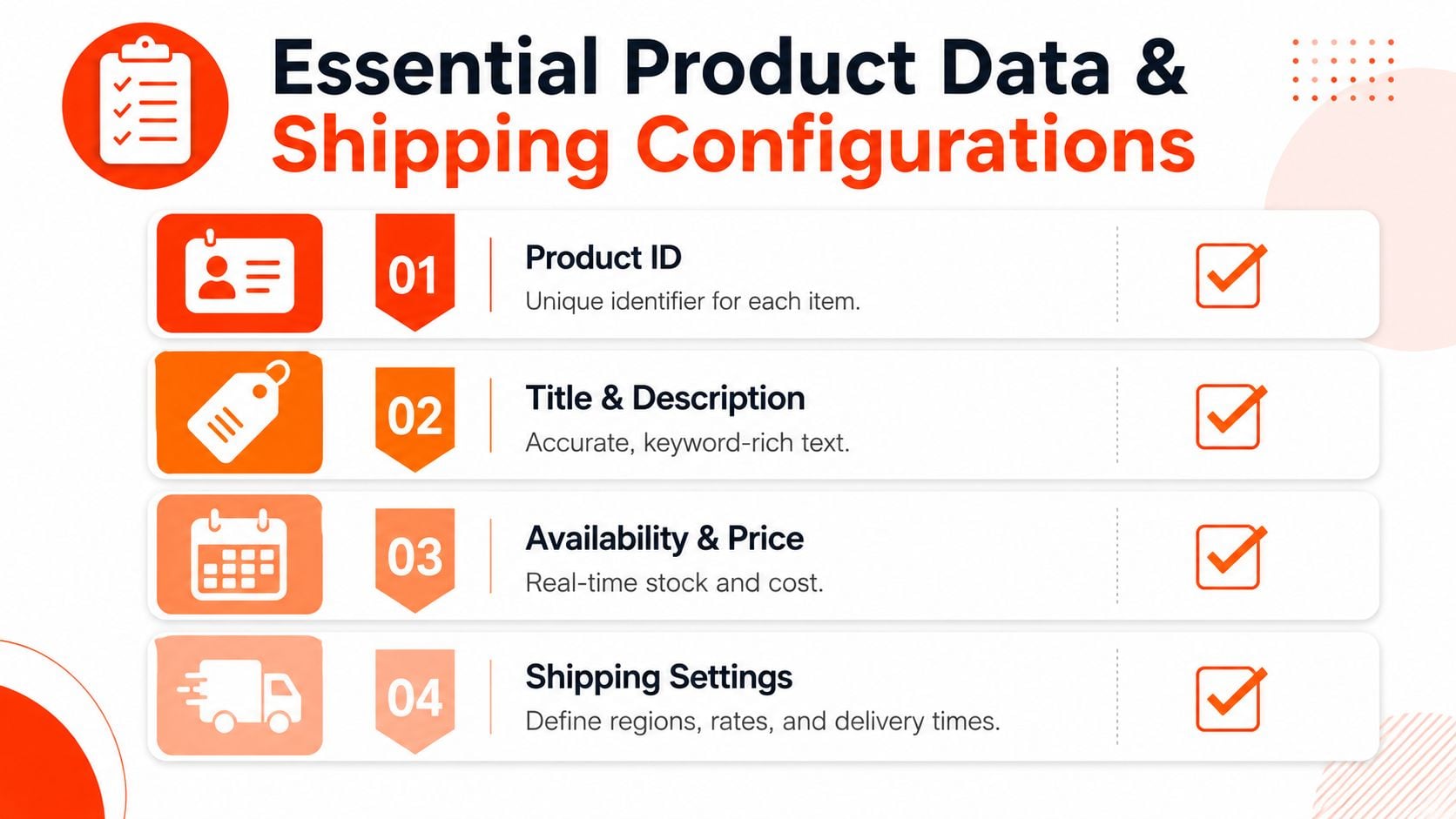
A product can be approved and still perform poorly if its feed, product page, shipping rules and Google Ads settings describe different offers. Start with a record that gives Google enough information to identify the item, understand the price and availability, and send shoppers to the correct page.
- ID: Use a stable, unique identifier for each product or variant. Keep it unchanged during routine catalogue edits.
- Title: Describe the product clearly, including the details that distinguish it from similar items.
- Description: Cover material, use, compatibility, size and other information that supports a buying decision.
- Product link: Send shoppers to the relevant canonical product or variant page, rather than a generic category page.
- Image link: Use a clear primary image that represents the submitted item and meets Google's image requirements.
- Price: Submit the customer-facing price shown on the landing page and through the relevant shopping path.
- Availability: Keep the stock status current so listings do not direct shoppers to unavailable products.
Titles should help Google match products with relevant searches. Keyword stuffing makes the record harder to interpret and can misrepresent the offer. For an Australian clothing retailer, a useful title might identify the garment, brand, colour and size or fit that separates one variant from another. Put supporting details in the description instead of repeating a string of search terms.
Treat shipping as an eligibility setting
For Australian merchants, shipping configuration affects both Shopping ads and free listings. Define the shipping service, destination coverage, eligible products, delivery speed and cost logic before launching. Different product groups may require separate rates or service rules, rather than one broad assumption across the catalogue.
Google identifies shipping speed and cost as common reasons shoppers abandon products. Its shipping settings guidance recommends overestimating shipping costs when exact rates are unavailable, then refining the settings once carrier data is confirmed. This reduces the risk of understating delivery charges in Merchant Center and presenting a higher amount at checkout.
Match the feed and Merchant Center shipping values to the storefront. Check metro, regional and remote Australian destinations where carrier rules differ. If the website offers free shipping above a threshold, configure Merchant Center so Google applies the same condition to the relevant products.
Keep GST-inclusive pricing consistent
The feed price must match what an Australian shopper sees on the product page. If the store displays GST-inclusive pricing, submit that customer-facing value rather than an ex-GST amount. Review regular price, sale price, variant price and currency together, particularly when the theme displays promotional messaging separately from structured product data.
The same offer should remain consistent across Merchant Center, the landing page, checkout and Google Ads. A price mismatch can affect approval and reduce trust even when the underlying product is suitable for Shopping. Check the live page after feed updates, especially when promotions, tax settings or variant logic change.
A reliable setup has one source of truth, controlled feed transformations and a routine comparison with live pages. That makes discrepancies easier to trace to the store, feed logic or Merchant Center rule, instead of leaving the team to guess.
Diagnosing Feed Errors and Resolving Disapprovals
Merchant Center diagnostics becomes useful when you read it as an investigation queue rather than a list of alarming messages. Start with account-level issues, then address disapproved products, then clean up warnings that could limit reach or become more serious after a catalogue change.

Use the landing page as the first test
Open an affected product on a device and region that reflects the target customer. Compare the visible price, availability, variant, image and delivery information with the submitted record. Then check whether the product link redirects, requires a selection before displaying a price or changes the offer after the page loads.
The common diagnostic patterns are usually traceable:
- Price mismatch: Compare feed output, structured data, visible page price and checkout price. Check sale-price dates and variant selection.
- Shipping problem: Confirm that the relevant Australian destination, rate and delivery speed are represented in Merchant Center and available on the site.
- Image rejection: Replace images that contain prohibited overlays, unclear products or an inaccurate representation of the submitted variant.
- Missing product identifiers: For branded products, check whether the available GTIN or MPN data is valid and belongs to the correct item. Don't invent identifiers to satisfy a field.
- Availability conflict: Compare the inventory system, product page, structured data and feed timestamp. A cached feed can continue submitting an item after the store sells out.
Apply fixes in the right layer
If the source catalogue is wrong, correct it there. If the source is accurate but the feed maps the wrong field, fix the mapping. If the transformation is correct but Merchant Center interprets a rule incorrectly, use feed rules or account settings to make the intended output explicit.
Feed rules can be useful when you need to transform a source field without rebuilding the source feed. They're especially helpful for controlled title adjustments, missing attributes or category mappings, but document every rule so a future operator understands why it exists.
After correcting the source, request a review where appropriate and monitor whether the new fetch produces the intended data. Don't repeatedly resubmit the same broken record. For a focused reference on recurring issues, use this guide to Google Merchant Center errors.
A short screen recording of the diagnostics workflow can help an internal team standardise triage:
Set up email notifications for important account and item problems, and assign ownership for responding. A feed can remain technically connected while the commercial data degrades, so someone must review diagnostics, affected products and landing pages as part of normal account management.
Linking Merchant Center to Google Ads for Shopping Campaigns
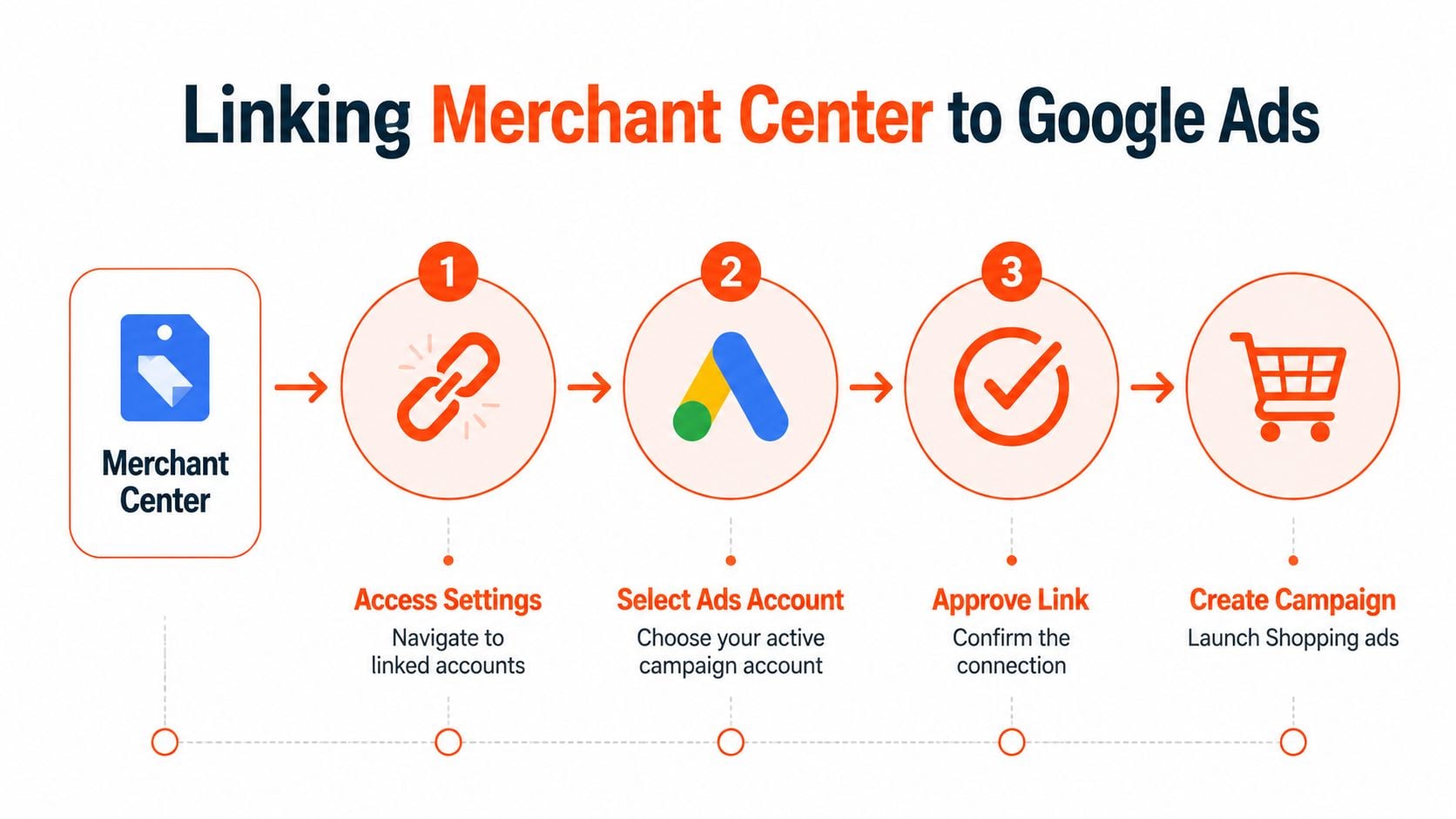
Link the accounts only after Merchant Center has a confirmed website and approved products. In Merchant Center, open the account settings, find linked accounts, select Google Ads and choose the Ads account that will run the campaigns. The Google Ads administrator may need to approve the request before the connection becomes active.
Choose a campaign structure deliberately
Standard Shopping gives advertisers more direct control over product groups, bids and query-level decisions. Performance Max uses broader automation across Google inventory and relies heavily on conversion data, creative assets, audience signals and the quality of the product feed.
Neither campaign type repairs weak catalogue data. If your products have inconsistent prices, unclear titles or unreliable availability, automation has a poor foundation. Start with a clean product selection, a defined conversion action and a measurement setup that records meaningful purchases rather than incidental page interactions.
Group products around commercial decisions, such as category, margin, brand, stock status or promotional priority. Avoid creating a maze of subdivisions that the team won't review. The structure should help you decide where to allocate budget and which products require a merchandising or feed change.
Align conversion tracking with the feed
Google Ads should record the purchase event that corresponds to the products and values being sold. Check that the transaction value, currency, order ID and attribution settings reflect the actual checkout. Remove duplicate purchase tags and distinguish completed orders from softer events such as add-to-cart or product-page visits.
Enable eligible free listings as well as paid campaigns. Merchant Center is not only a Shopping ads data source. Approved products can support organic visibility across Google surfaces, so the same accurate feed should serve both purposes.
For broader campaign planning, review these Shopping and PMax strategies, then adapt the structure to your catalogue economics and tracking quality. Australian retailers can also use this practical guide to Google Shopping in Australia.
Your Ongoing Merchant Center Maintenance Checklist
A healthy Merchant Center account needs an operating rhythm. Assign each task to a person, record the source of truth and investigate changes before they affect a large product range.
Daily checks
- Review urgent diagnostics: Look for new account issues, disapprovals and failed feed processing.
- Check commercial changes: Confirm that major price, stock and promotion updates reached the feed.
- Watch campaign signals: Investigate sudden delivery changes alongside product eligibility rather than changing bids first.
Weekly checks
- Compare storefront and feed: Sample products across categories, variants and shipping regions.
- Inspect shipping rules: Confirm that delivery costs and speeds still match carrier and site settings.
- Review search relevance: Improve titles and descriptions where products receive poor-quality traffic or fail to match the intended offer.
Monthly checks
- Audit identifiers and images: Remove duplicate, inaccurate or outdated product information.
- Validate tracking: Test a purchase path and check that Google Ads records the intended conversion once.
- Review product performance: Filter reporting by store type and traffic source to separate paid, organic, online-store and physical-store activity where available.
- Plan catalogue changes: Add new categories, seasonal shipping rules and surface eligibility before launch.
Google has extended AI-powered shopping insights to Australia, so AU accounts are included in newer Merchant Center measurement capabilities. That makes accurate approval and confirmed store setup even more valuable, because reporting and newer insights depend on usable product data. Treat Merchant Center as a living data system, not a static checklist.
Click Click Bang Bang helps Australian businesses connect Merchant Center, Google Ads, Analytics and conversion tracking so product data and campaign measurement work together. If your feed is producing disapprovals or your Shopping campaigns aren't using reliable purchase signals, visit Click Click Bang Bang to discuss a practical setup and management plan.
Read NeXt
Or Read Our Latest
- How to Set Up Google Ads in Australia: Complete 2026 Guide
- Google Merchant Center Setup: The Complete 2026 Guide
- Business Manager Setup Facebook: The Complete 2026 Guide
- Google Ads Account Setup: Expert Guide for 2026
- Search Ads Optimisation: A Practical Guide for 2026
- Manual vs Automated Bidding for PPC Success
Click. CLick. Subscribe.
Get our best PPC insights, industry updates, and power moves delivered straight to your inbox. No fluff, just high-caliber strategies that actually work.
Don’t Leave Just Yet
Try Us For 30-Days,
Risk Free!!
We guarantee that you’ll love our work within the first 30 days, if not you’ll get your money back.
What have you got to lose?